🖇️ Connectable Furniture
Nexo allows you to make furniture that can connect together to form different visual furnitures.
An example would be a chair that can be turned into a couch, or a small table into a larger one.
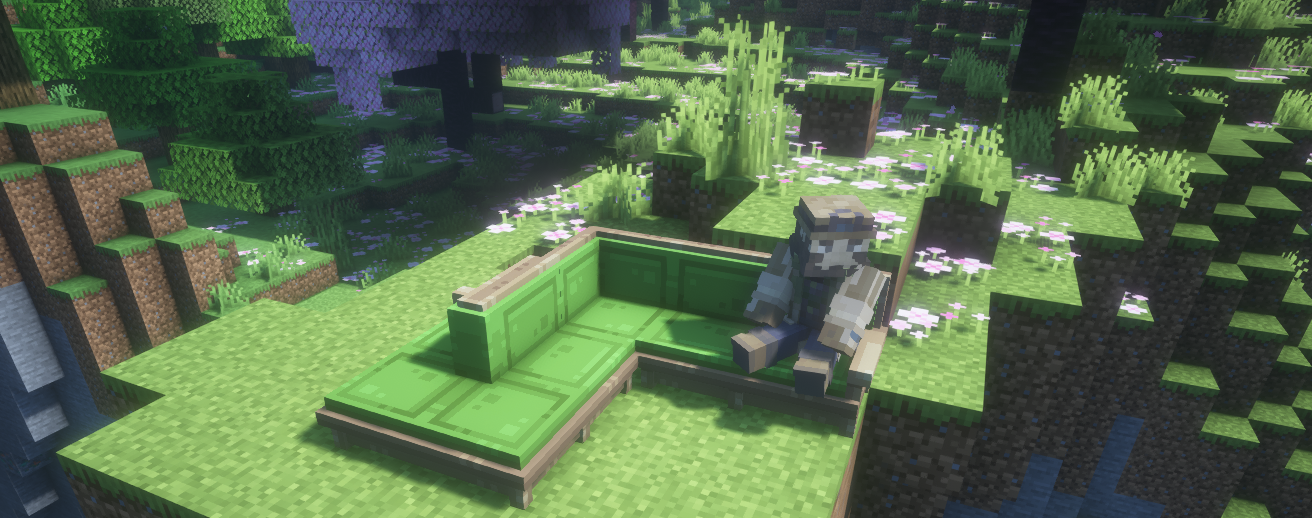
Default Connectable furniture included in Nexo's Default Items
Connection-Types
A connectable furniture is made up of a few different variations.
Above you can see an example of all of these. They are used to decide when to display what.
DEFAULT - The base-item, what is placed when not connected to anything
LEFT & RIGHT - The left/right end of a connectable furniture
STRAIGHT - The piece between a LEFT & RIGHT
INNER - Corner facing inwards
OUTER - Corner facing outwards
There are a few different ways to add this mechanic to your furniture-item, ITEM_MODEL & ITEM type.
ITEM_MODEL is the recommended approach as it allows for two different approaches when making the furniture. First using a "BlockState ItemModel" approach.
This is the recommended as it limits the amount of files needed in your ResourcePack
ITEM relies on NexoItems to define the model used for a connection-variation.
The end product is the same but compared to ITEM_MODEL, this approach requires an additional 5 NexoItems, cluttering config-files.
ITEM_MODEL works by directly setting the ItemModel to use on the furniture, instead of going through a NexoItem.
This requires that you provide the necessary ItemModels, but they are very easy to make.
Nexo does not generate these ItemModels for you.
Connection-State ItemModel
This is largely the same as a normal basic ItemModel, but with one unified ItemModel
It works by selecting a Model based on the "connection-state" on the item.
Here is an example of a ConnectionState ItemModel. It should be fairly self-explanatory.
The FurnitureItem displayed to the player has a tag on it specifying the connection-state.
This in turn tells the client what model to use from this ItemModel.
This reduces the amount of ResourcePack files needed & simplifies the NexoItem config aswell.
This can either be made directly in the config using ItemModel Builder, or making the ItemModel file directly
Here is the NexoItem-config utilizing this ConnectionState-ItemModel.
We do not need to specify any of the sub-properties.
It will simply use the ItemModel we specify in Components section.
connectable:
  itemname: Connectable
  Components:
    item_model: nexo:connectable/connectable
  ## Below can be used to let Nexo generate the ItemModel file for you
  #ItemModel:
  #  type: select
  #  property: block_state
  #  block_state_property: connectable
  #  cases:
  #    - when: straight
  #      model:
  #        type: model
  #        model: nexo:item/nexo_furniture/connectable/connectable_straight
  #    - when: left
  #      model:
  #        type: model
  #        model: nexo:item/nexo_furniture/connectable/connectable_left
  #    - when: right
  #      model:
  #        type: model
  #        model: nexo:item/nexo_furniture/connectable/connectable_right
  #    - when: inner
  #      model:
  #        type: model
  #        model: nexo:item/nexo_furniture/connectable/connectable_inner
  #    - when: outer
  #      model:
  #        type: model
  #        model: nexo:item/nexo_furniture/connectable/connectable_outer
  Mechanics:
    furniture:
      connectable:
        type: ITEM_MODEL
      hitbox:
        barriers:
        - 0,0,0
If you do not wish to use ItemModel Builder, you can manually make the file like below.
This ItemModel should be put in for-example;
Nexo/pack/assets/nexo/items/connectable/connectable.json
{
  "model": {
    "type": "select",
    "property": "block_state",
    "block_state_property": "connectable",
    "cases": [
      {
        "when": "straight",
        "model": {
          "type": "model",
          "model": "nexo:item/nexo_furniture/connectable/connectable_straight"
        }
      },
      {
        "when": "left",
        "model": {
          "type": "model",
          "model": "nexo:item/nexo_furniture/connectable/connectable_left"
        }
      },
      {
        "when": "right",
        "model": {
          "type": "model",
          "model": "nexo:item/nexo_furniture/connectable/connectable_right"
        }
      },
      {
        "when": "inner",
        "model": {
          "type": "model",
          "model": "nexo:item/nexo_furniture/connectable/connectable_inner"
        }
      },
      {
        "when": "outer",
        "model": {
          "type": "model",
          "model": "nexo:item/nexo_furniture/connectable/connectable_outer"
        }
      }
    ],
    "fallback": {
      "type": "model",
      "model": "nexo:item/nexo_furniture/connectable/connectable"
    }
  }
}
ITEM_MODEL works by directly setting the ItemModel to use on the furniture, instead of going through a NexoItem.
This requires that you provide the necessary ItemModels, but they are very easy to make.
Normal ItemModel
This requires you to make a basic ItemModel for each of the connection-states, which looks as follows;
Now repeat this for all six connection-states, pointing to the different Models and put them in your ResourcePack.
Example path being; Nexo/pack/assets/nexo/items/connectable/connectable.json
Then we just need to make the NexoItem config, and point it to the different Connection-State ItemModels it should use.
connectable:
  itemname: Connectable
  Components:
    item_model: nexo:connectable/connectable
  Mechanics:
    furniture:
      connectable:
        type: ITEM_MODEL
        default: nexo:connectable/connectable            # We can reuse this item as we want to use the above ItemModel
        straight: nexo:connectable/connectable_straight  #If unspecified, will use default + "_straight"
        left: nexo:connectable/connectable_left          #If unspecified, will use default + "_left"
        right: nexo:connectable/connectable_right        #If unspecified, will use default + "_right"
        inner: nexo:connectable/connectable_inner        #If unspecified, will use default + "_inner"
        outer: nexo:connectable/connectable_outer        #If unspecified, will use default + "_outer"
      hitbox:
        barriers:
        - 0,0,0
The ITEM approach relies on NexoItems to choose the Model to display.
Below is an example config of a main-item and the different sub-NexoItems for each ConnectionState
connectable:
  itemname: Connectable
  Pack:
    model: nexo:items/nexo_furniture/connectable/connectable
  Mechanics:
    furniture:
      connectable:
        type: ITEM
        # If default is not specified it will use ItemID by default
        default: connectable            # We can reuse this item as we want to use the above model
        straight: connectable_straight  #If unspecified, will use default + "_straight"
        left: connectable_left          #If unspecified, will use default + "_left"
        right: connectable_right        #If unspecified, will use default + "_right"
        inner: connectable_inner        #If unspecified, will use default + "_inner"
        outer: connectable_outer        #If unspecified, will use default + "_outer"
      hitbox:
        barriers:
        - 0,0,0

#Dummy NexoItems for linking to a Model
connectable_straight:
  excludeFromInventory: true
  excludeFromCommands: true
  Pack:
    model: nexo:item/nexo_furniture/connectable/connectable_straight
connectable_left:
  excludeFromInventory: true
  excludeFromCommands: true
  Pack:
    model: nexo:item/nexo_furniture/connectable/connectable_left
connectable_right:
  excludeFromInventory: true
  excludeFromCommands: true
  Pack:
    model: nexo:item/nexo_furniture/connectable/connectable_right
connectable_inner:
  excludeFromInventory: true
  excludeFromCommands: true
  Pack:
    model: nexo:item/nexo_furniture/connectable/connectable_inner
connectable_outer:
  excludeFromInventory: true
  excludeFromCommands: true
  Pack:
    model: nexo:item/nexo_furniture/connectable/connectable_outer